Monday, June 24, 2013

Three fun ways to personalise your Android home screen

Three fun ways to personalise your Android home screen


One of Android's benefits (or weaknesses, depending on your perspective) is the ease with which you can tweak various aspects of the software, including apps, settings, widgets, home and lock screens and icons.
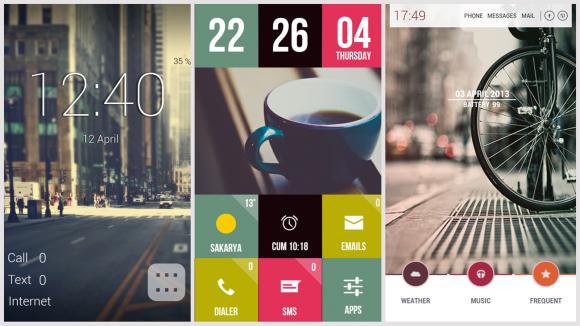

You can get under the hood of the operating system in a way that just isn't possible on Apple devices without resorting to jailbreaking, and with the right tools to hand, you can put together a home screen that looks completely different from anyone else's.

If you're eager to try your hand at transforming the appearance of your Android phone or tablet's home screens, we've pulled together everything you need to know - cut out the unnecessary clutter and focus on the apps, widgets and information that you really do want to see front and centre.

All of the customisations here can be made without rooting your phone or tablet, though even more tweaks are possible if you do. Here's our ultimate guide to customising your Android device's home screen.

1. Install a launcher

Installing a launcher is the first step in transforming the look of your home screen, and most come with tutorials.

These alternative tools jump into action whenever you hit the Home button, replacing the standard launcher with layouts of their own.

They can change icon sizes, screen layouts and app drawers, as well as show or hide elements like the Google search widget and the notification bar.

Whenever you install a new launcher from Google Play, you'll be given the option to use it as the default. Switch back to the original launcher and your customisations are undone in one fell swoop.

Apex Launcher and Nova Launcher are two of the most popular and most comprehensive launchers in town, and both apps have limited free versions available if you want to test them out before paying any money.

You'll need Android 4.0 Ice Cream Sandwich or later to run either of these tools, but both apps are regularly updated and come with a dizzying array of features and options.

SSLauncher is another popular choice and eschews the grid-based layout favoured by Apex and Nova to give you full pixel-by-pixel control over your widgets and icons. It's compatible with Android 2.2 and above as well, so it's suitable for older handsets.

Other launchers worthy of your consideration include ADW.LauncherGo Launcher EX andLightning Launcher. Which one will work best for you depends on your device and exactly what you want to achieve.

2. Build shortcuts and widgets

You can just use a launcher on its own to modify the look of your home screens, changing the size of icons and widgets and hiding any elements (such as the dock) that you don't want to see. If you're happy to go a few steps further, though, you can start building your own widgets and icons to your exact requirements, or load in packs and themes created by other users.

Ultimate Custom Widget (UCCW) is the go-to tool here, enabling you to combine images and text with hotspots that lead to an app or setting when tapped.

You can create a custom icon for Gmail, or set the entire home screen to launch Facebook. UCCW can take some getting used to, but play around with the interface and you'll soon get the hang of it. You can drop in the time and date, your current location, the battery status and more besides.

You'll find many themes on MyColorScreen and other sites that come with .uzip files that can be opened up and modified in UCCW, and you can transfer them over to your phone and tablet with an app such as Dropbox or via a good old-fashioned USB cable.

Other tools that will come in handy include Desktop VisualizeR, which gives you free reign to create shortcuts and icons of your own design, and WidgetLocker, which provides a stack of options for modifying the lock screen. Simple Text is one of several apps that can convert your app icons into text instead, while Missed It! is a great choice for customising notification alerts.

3. Put it all together

Use a launcher to change the settings and framework of your home screens, then a widget tool such as UCCW to create your own designs to put into this framework, and you're just about done. Whether you want to go ultra-minimal, or would like to cram as much as you can into one screen, these tools are flexible enough to adapt.

Plenty of pre-made icons and themes can be found on Google Play, as well as other sites such as MyColorScreen and DeviantArt.

To give you a few of examples to get started with, we'd recommend the cheap Minimal UI icon pack, which works with most launchers, the free Power Toggles pack to replace the standard widget set for options such as Wi-Fi and Bluetooth, and Beautiful Widgets Free for some eye-catching clock and weather graphics


Top 5 launcher

The 5 Best Android Launchers

 If you are bored of your usual home screen or you’re looking for a new and different way to get along with your Android device, you could find a good number of Android launchers that come in Google Play. Some of them are much better than the manufacturer made launchers and some of them come with most friendly user interface that even beatify your phone for an attractive look.


Here are top five Android launchers you should try for the ultimate user experience as compiled by Android Authority.


-5   91 Launcher


91 Launcher is the most popular Android home replacement application offering users a very smooth experience. It is very simple in nature and if you get into deep customization with it, it sticks to offer the basics such as good widgets, wallpapers and attractive themes. You can personalize and enhance your Android device at your best with its speedy operation.


The app supports Android 2.2 and higher versions. It adds features of latest versions to older phones as well, including resizable widgets and app folders. Power management, weather, system settings and other status widgets also come in hand on the notifications bar.


So if you have thought about it then there’s no looking back because 91 Launcher is worth checking out always.
-4   Apex Launcher

This one comes as a powerful, fast and highly customizable home replacement for Android 4.0 and higher versions. The launcher is so fully filled with features and customized options and has garnered wide attention for its friendly user interaction.

A lot of customization can be done with this app, such as app drawer, home screens, themes, icon packs and cool transition effects. The launcher offers more gesture options and additional transition effects that make it not too difficult.

App launcher also has tablet support and its overall positive experience can give you a slick performance.  But the only drawback is that all the cool features come in paid versions, which would actually not be a surprise.

-3   GO Launcher

 GO Launcher is the most downloadable and popular Android home launcher replacement app. Its free offering packs itself with a lot of customization options and endless supply of add ons.

The apps performance is also said to be very good and can be completely appreciated if set up entirely. With a plethora of themes filled in these apps and a bundle of features and customizations that go on and on, setting up this app entirely may get long hours.


However, for those who always wish to jiggle around with so many options, GO Launcher is just the apt one to proceed with. But this would also be a little more chaotic than other launchers as it crowds itself with many choices.
-2   NOVA Launcher Prime

This performance driven app is considered to be the most dependable and well received launcher as of others. It holds unlimited custom tabs and folders in App Drawer and flaunts an innumerable series of features, themes and customizations, even if it does not overtake the previous one. For eye candy lovers, NOVA Launcher has a good amount of it.

NOVA Launcher Prime is also one of the best in terms of dealing with widgets.  As it supports, users can put one by one widget in the dock and even overlap their widgets to maintain the precious home screen space. There is also an option to create widget collages.

The app runs smoothly being an all rounder in all features.

-1   Smart Launcher Pro

This is an innovative launcher characterized by minimalistic design and low memory usage. The applications get its ways with a user-friendly experience of few taps on your screen.

What makes it different from other launchers mentioned in this list is that it doesn’t stick to general Android aesthetics that other apps follow. People have also liked it as it boasts to be a good one with what it wants to offer.

All you have to do is begin with a single home screen with shortcuts arranged in a circle. These shortcuts can be programmed to open whatever app you want, so that you can get into your frequently used apps faster and more efficiently. From there, you can access a modified app drawer for all your widget needs.

On the whole, this is a launcher that performs differently for those who want to give it a try.


How to make your whole home screen look like Google Play

How to make your whole home screen look like Google Play

How to make your whole home screen look like Google Play

Google Play Home ScreenGoogle's Android services are looking pretty sharp these days -- and with a few minutes of setup, you can make your phone's home screen follow their lead.
Yesterday, I showed you how to make your whole home screen look like Google Now. But why stop there? Following our "Google-ize your home screen" theme, today we'll take a look at a way to bring the newly revamped Google Play Store design to the heart of your device.
Once again, you'll need to download and install the free Ultimate Custom Widget (UCCW) app to begin. Then grab the Play UCCW skin -- also free -- and, huzzah! The pieces are all in place.
With those two apps on your phone, all you'll need to do is add a new widget to your home screen -- the same way you always do -- and then select "UCCW 4x1" from the list of options. You'll see a list of Play Store-themed buttons that be placed anywhere you like and optionally resized via your phone's launcher.
The buttons includes standard Play-themed widgets for things like a clock and message counter as well as more basic shortcuts to a variety of system-level and third-party apps. You can customize all the buttons' hotspots, too, if you want to change what happens when you press them. Throw in a gray wallpaper, and boom: You've got the essence of Google Play in your hand.
Personally, I think the Google Now home screen setup is a bit more versatile and appealing, but it's cool that someone took the time to make the tools for this look as well. The real beauty of Android, after all, is that you can make your phone work the way youwant; no two devices have to be alike.


SteelSeries QcK Frost Blue Edition Mousepad

 SteelSeries QcK Frost Blue Edition Mousepad 


Frost Blue Edition

This SteelSeries QcK Frost Blue Edition features an ice cold design to match the Siberia v2 Frost Blue and the Sensei [RAW] Frost Blue.
Rubber base

NON-SLIPPERY RUBBER

The SteelSeries QcK Frost Blue Edition mousepad has a non-slip rubber base that prevents the pad from slipping when you use it. Also the rubber ensures that you have maximum comfort for your wrist and hand on the pad at all times.


PROFESSIONALLY TESTED

The SteelSeries QcK series has been optimized and tested with professional gaming teams for the past decade. From the mini to the heavy, the QcK series offers something for every gamer regardless of their space and set-up.

MORE THAN JUST CLOTH

The cloth surface on the SteelSeries QcK Frost Blue Edition provides a smooth and steady glide regardless of the tabletop or surface that it’s place on.

Weight & Size

AND THE NUMBERS

  • Height: 2 mm (0.08 in)
  • Width: 320 mm (12.6 in)
  • Length: 270 mm (10.6 in)


SteelSeries Sensei [RAW] Frost Blue Mouse

 SteelSeries  [RAW] Frost Blue Mouse


SENSEI [RAW] FROST BLUE

Since the release of our first mouse, we have been using Japanese-inspiration in our naming of them. Our mice are built for performance and tournament-style play; Ikari means anger, Xai means talent, and the list of product names goes on. The Sensei is our version of the grand-master in our Do Jo. It is the teacher. The Sensei [RAW] Frost Blue is that master in his pure and focused form. With tournament grade components and focused intent, the Sensei [RAW] Frost Blue is the essence of performance delivering only what you need to eliminate your challengers.

Weight & Size

SIZE AND WEIGHT

  • Weight: 90 grams (0.2 lbs)
  • Height: 38.7 mm (1.5 in)
  • Width: 68.3 mm (2.7 in)
  • Length: 125.5 mm (4.9 in)


Glide

GLIDE LIKE THE WIND

Material: High Performance PTFE material covers 16 % of mouse bottom to ensure maximum glide. We recommend changing glides regularly as they will eventually be worn down.
SteelSeries Sensei Glides
Developed with gamers

WINNING, IT’S THE WAY OF THE SENSEI

The SteelSeries [RAW] Frost Blue is the purified form of the original SteelSeries Sensei. It is is the essence of performance and embodies everything we ever learned about mice, everything we ever researched, everything we ever discovered, everything that makes a mouse great, is exactly what we built the SteelSeries Sensei mice around. The DNA of Sensei is programmed to win. These are those rare hardware products forged by love and science, trial and error, passion from professional gamers and a desire to push the envelope. SteelSeries Sensei mice were born for tournament victory; they are built to help you win.

Button

BUTTONS

1. Left side button 1
2. Left side button 2
3. Left click
4. Right click
5. Scroll wheel & middle click
6. CPI high / low switch
7. Right side button 1
8. Right side button 2


Macro

ADVANCED MACROS

Thanks to the support of the SteelSeries Engine software, you can record even extremely long and advanced macros to the Sensei [RAW] Frost Blue. The macros can not only be layered and can include keystrokes and precise timing, but they can span across your peripherals allowing you to have a mouse button assigned to perform keyboard strokes and mouse clicks in the same macro. How you will decide to use this advanced feature is up to you (choose your configurations wisely and adhere to any rules that you may need to abide by during gameplay); we are only presenting you with the capabilities for endless possibilities.
Rubberized Vs. Glossy

Glossy White

SteelSeries Sensei [RAW] Frost Blue features a sleek, glossy white coating that delivers a unique feeling, allowing the user to compete and win in style.

Technology

BEST-IN-CLASS TECHNOLOGY

Featuring a state of the art laser sensor that offers a consistent and reliable performance, the SteelSeries Sensei [RAW] Frost Blue boasts 10.8 megapixel HD image correlation at up to 12,000 frames per second and the ability to handle tracking movements of up to 150 inches per second.

Developed with gamers

DEVELOPED WITH THE BEST

We are proud to be associated with some of the best players in the world of eSports. We maintain strong relationships and have continuous dialogue with teams like SK Gaming, Fnatic, Evil Geniuses, Natus Vincere and others who help in the development and improvement of our products. 

To ensure maximum performance in all gaming scenarios we enlisted help from world-class StarCraft® II, Counter-Strike®, DotA, League of Legends®, Heroes of Newerth® WarCraft® III and Doom® players. Click on the picture below for a list of the players who helped us with testing and refinement of the Sensei. We owe them a lot of thanks, Sensei [RAW] Frost Blue has the same performance as the original Master – so if you like the Sensei these are the players who helped make it happen.


Steelseries Frost Blue bundle

Steelseries Frost Blue bundle 

Details

SteelSeries Siberia v2 Frost Blue USB Headset: 
The SteelSeries Siberia v2 Frost Blue features all the sexy features that have earned the Siberia series many awards and much fame since the original. We have added brilliant blue illumination that functions in 6 modes and an integrated USB sound card that is supported by SteelSeries Engine. The over-the-head suspension design keeps the headset light and adjustable for every head size. The earcups feature noise reducing foam covered in grey leather to keep out noise and helps you focus on the important audio or voice communication. Lastly, the retractable, active noise-cancelling microphone is there when you need it and hides in the left earcup when you don’t. 

SteelSeries Sensei [RAW] Frost Blue Mouse:
Since the release of our first mouse, we have been using Japanese-inspiration in our naming of them. Our mice are built for performance and tournament-style play; Ikari means anger, Xai means talent, and the list of product names goes on. The Sensei is our version of the grand-master in our Do Jo. It is the teacher. The Sensei [RAW] Frost Blue is that master in his pure and focused form. With tournament grade components and focused intent, the Sensei [RAW] Frost Blue is the essence of performance delivering only what you need to eliminate your challengers. 

SteelSeries QcK Frost Blue Edition Mousepad: 
This SteelSeries QcK Frost Blue Edition features an ice cold design to match the Siberia v2 Frost Blue and the Sensei [RAW] Frost Blue.

Quick Overview

The Frost Blue Bundle lets you save €50 on the complete bundle of SteelSeries Frost Blue products. The bundle includes:

- SteelSeries Siberia v2 Frost Blue USB Headset 
- SteelSeries Sensei [RAW] Frost Blue Mouse
- SteelSeries QcK Frost Blue Edition Mousepad

 SteelSeries Siberia v2 Frost Blue USB Headset 

 Headphone

Classic Siberia. Enhanced.

The SteelSeries Siberia v2 Frost Blue features all the sexy features that have earned the Siberia series many awards and much fame since the original. We have added brilliant blue illumination that functions in 6 modes and an integrated USB sound card that is supported by SteelSeries Engine. 
The over-the-head suspension design keeps the headset light and adjustable for every head size. The earcups feature noise reducing foam covered in grey leather to keep out noise and helps you focus on the important audio or voice communication. Lastly, the retractable, active noise-cancelling microphone is there when you need it and hides in the left earcup when you don’t.


PERSONALIZE. EQUALIZE.

Let’s face it, the way you hear the game is unique to the tones your hearing can pick up, and probably completely different than the next gamer, which is why SteelSeries provides Frost Blue Headset users the ability to adjust, personalize and save all of their audio and equalizer settings. Save up to 8 settings for specific game profiles.

Pull-out Microphone

RETRACTABLE MICROPHONE

The Frost Blue Headset features a retractable microphone system. Pull it out when you need it. Hide it in the left earcup when you don’t.


LIGHT 'EM UP

16 Super Bright LEDs create a beautiful, even illumination around each ear cup capable of functioning in 6 different modes. Through the SteelSeries Engine, users can customize illumination in pulse (fast and slow), intensity (low and high) and even a sound activated mode. Of course, in true SteelSeries fashion, you can turn off the lights and still enjoy the amazing quality and audio features of this advanced headset.


Is your Nexus 7 lagging lately?

Is your Nexus 7 lagging lately?

Nexus 7 with Android 4.1.0 Jelly BeanThe Nexus 7, though one of the best 7-inch tablets around, is experiencing some issues lately. Some users have reported performance issues with their tablet; things like stuttering, lagging, slow playback. The issue may not be the tablet, necessarily, but being the scapegoat for this issue could be the silver lining for Google.
It seems that the Nexus 7 simply hasn’t aged well, or rather Android has lapped it. Reports of similar issues on other tablets are rampant as well, and it points to an issue with Android 4.2, not so much a hardware issue. As Android versions improve, the single gigabyte of RAM housed in the Nexus 7 may just not be adequate to keep up.

The only real fix is better hardware.

The only real fix is better hardware. In considering the Nexus 7 versus the Nexus 4, where both operate on the same iteration of Android, the Nexus 4 has none of these performance issues being mentioned. What it does have is double the RAM, and a better processor.So, what’s the fix? There isn’t one, really. You can root your device and flash a different ROM, but that’s no guaranteed fix. You can do a factory reset, but Android 4.2 will be right back once the device updates again. There are apps that will polish up the available memory, which can improve performance, but that’s tedious to do often.
We still hope the new Nexus 7 hits our hands in the fall, when Google likes to announce their new Nexus devices, and we need to see some much improved specs. It’s oddly satisfying to hear people complain about the Nexus 7 in this respect. It indicates a nice market share for the flagship Android tablet, and a user base hungry for an upgrade.